Category: Sync for iCloud Mail

  • iMail Release 14.48

    iMail continues to see strong user growth, most of which is composed of organic installs. As a result of this growth, more functionality is being developed for iMail, together with periodic bug fixes and performance improvements.

    Support for additional email services

    This release marks a major milestone, where users will be able to add mail accounts for other email services in addition to Apple iCloud. As a result of this added functionality, the way in which a user logs in will be changing slightly.

    In addition to iCloud email accounts, users can now log in to Yahoo and Gmail accounts. Microsoft Outlook accounts are not yet supported, with support being planned for a future release. However, users can still log in to their Microsoft Outlook accounts by manually configuring the IMAP settings during the log in process.

    Changes to iCloud login

    Users who wish to log in their iCloud email accounts will need to make use of either an iCloud.com email, or a me.com email. The app will automatically detect the server settings for the user.

    Login using the normal iCloud username and password is still supported, where an app specific password will be automatically created for iMail after successful login to the user’s Apple iCloud account. To use this feature, the iCloud email address must first be entered in the email box. Once iMail recognises the account type, a button will appear on screen. Pressing on this button will redirect the user to log in using the Apple iCloud normal password.

    Rollout of update

    Initially, the update will be rolled out for a select number of users. This allows me to identify any potential bugs and issue any needed fixes before the update is rolled out to more users.

    If no major issues are encountered, the roll out will be increased to more users through the month of February.

  • Sync for iCloud Mail Release 11.2.3

    Sync for iCloud Mail version 11.2.3 is being rolled out to users on the Google Play Store. This update contains the following fixes and improvements:

    • Major bug fixes and performance improvements to both back-end code and the front-end code.
    • Updated internal libraries to improve app stability on multiple devices.
    • Update to the user interface, including layout fixes and the additions of more images for a more professional and sleek look.

    Download

    Download from the Google Play Store for free by clicking on the button below.

  • Sync for iCloud Mail Release 11.1.5

    Sync for iCloud Mail version 11.1.5 is being rolled out to users on the Google Play Store. This update contains the following fixes and improvements:

    • When logging in with a new account, the continue button is now visible and styled correctly for older Android versions.
    • A bug which resulted in the app crashing during the log in process has now been resolved.
  • 5 steps to get iCloud on Android – Quick Guide

    5 steps to get iCloud on Android – Quick Guide

    Anyone who has used an iOS device is aware of Apple’s restriction of its services being usable only on their own devices. As a result, Apple uses this technique in order to try to lock their user base to their products.

    If you are switching from an iOS device to an Android device, you might think that it is difficult to get your data from your iCloud account on your Android device, without having to export everything and moving to another serivce provider, such as Google Cloud.

    In this guide, I will be showing you how to gain access to your data found on your iCloud account on your Android device without having to export any data. We will be using the Sync for iCloud application suite on Android in order to access the iCloud data directly on your mobile or tablet running Android.

    Part 1: Go to the Google Play Store

    Grab your mobile phone or tablet running Android and open Google’s Play Store application.

    Part 2: Search for Sync for iCloud

    Once you have opened the Play Store, press on the search icon and search for ‘Sync for iCloud’. Once found, install the app.

    Part 3: Install Sync for iCloud Contacts and Sync for iCloud Mail

    If you want to get your iCloud contacts and your iCloud mail synced as well, install these applications too.

    Part 4: Open Sync for iCloud

    Once installed, open Sync for iCloud. The first thing you would want to do is to generate an app-specific password. This can be done by pressing on ‘Add Account’ and then pressing on ‘Generate App Specific Password’.

    You will be taken to Apple’s website in the in-app browser where you can generate the app-specific password. Make sure to copy the password.

    Part 5: Log in

    Go back to the Sync for iCloud log in screen and enter your iCloud username and paste the app-specific password.

    Press on the ‘Log in’ button to log in. Once logged in, select the calendars you want to sync. You can do the same process in Sync for iCloud Contacts to get your contacts, and in Sync for iCloud Mail to sync your mail.

  • Get iCloud on Android

    Get iCloud on Android

    A lot of websites have been showing users how to add iCloud functionality to Android devices. Unfortunately, the steps shown in the tutorials consist of several complicated steps. Furthermore, the steps would sometimes result in having to export data from your iCloud account in order to be able to use them on Android.

    In reality, you can easily get iCloud data synced to your Android device without having to go through complicated steps. All you need to do is to download Sync for iCloud.

    Sync for iCloud lets you log in to your iCloud account from any Android device and keep data synced. Our suite of apps currently support syncing of calendars, contacts and emails. Furthermore, the apps have been tailored around Apple’s iCloud services, with particular focus on user experience and security.

    You can download Sync for iCloud for free from the Google Play Store by going here: https://play.google.com/store/apps/details?id=com.granita.caldavsync

  • Sync for iCloud Mail – Release 10.2.8

    Sync for iCloud Mail – Release 10.2.8

    A new release is currently being rolled out on the Google Play Store for Sync for iCloud Mail.

    This new release contains various bug fixes, most notably a bug where clicking on a link on an email. Clicking on a link in an email now redirects you to the default browser application on your device. As a result, you should now be able to view links in emails.

    Furthermore, other fixes include a new way of loading folders in your inbox and a progress bar to show you the loading progress of emails.

    Feel free to reach out to us on Twitter or Facebook, or drop us an email should you find any issues.

  • Logging in with 2 factor authentication

    Logging in with 2 factor authentication

    Sync for iCloud, Sync for iCloud Contacts, and Sync for iCloud Mail do not support Apple’s latest authentication methods. Therefore, to log in to your account, you need to create an app specific password.

    The steps below will show you how to check whether you have Apple’s latest authentication method enabled, and how to generate an app specific password. Each time you change your password, you must create a new app specific password.

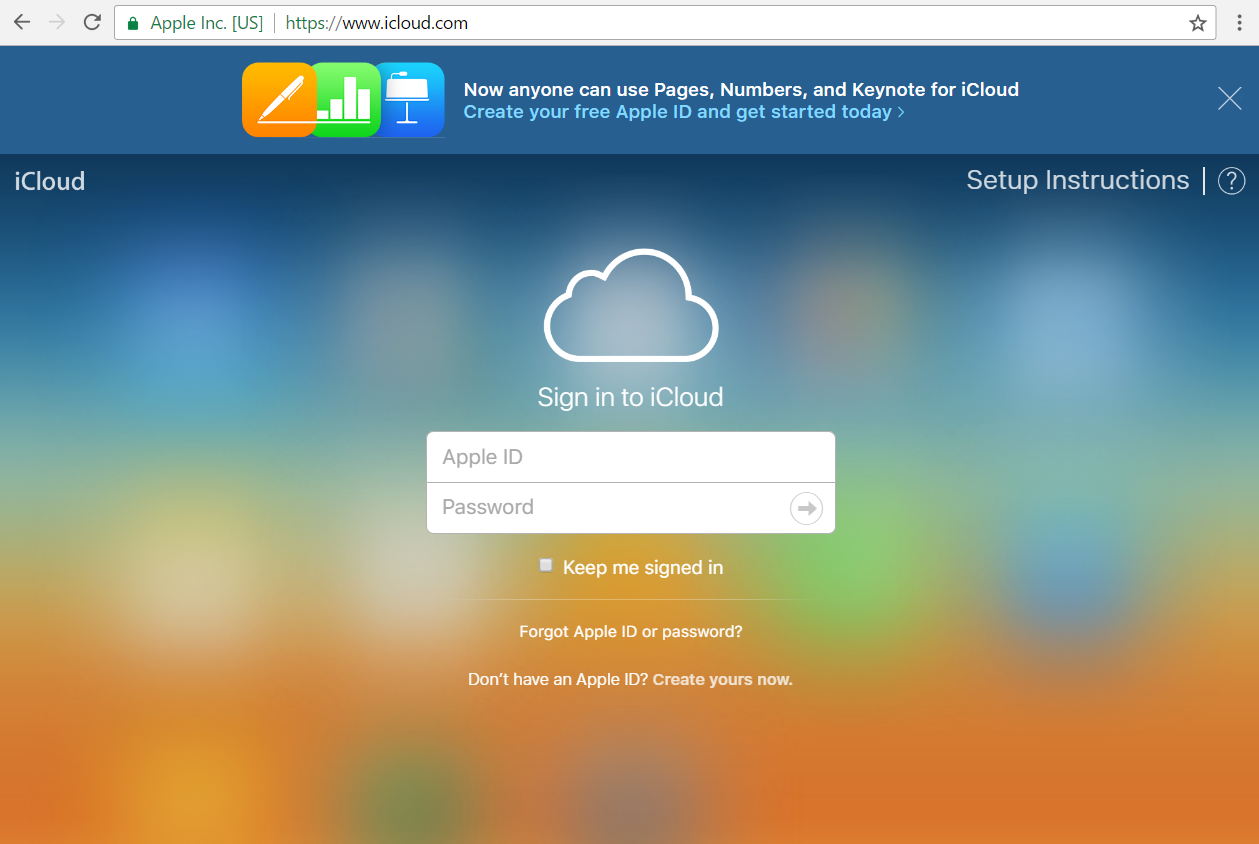
    1. Open your browser and go to icloud.com. Log in with your iCloud account.

    2. Click on the ‘Settings’ icon.

    3. Click on ‘Manage’ Apple ID.

    4. Click on ‘Generate Password…’

    5. Enter a name for the app-specific password and click ‘Create’.

    6. Open Sync for iCloud/Sync for iCloud Calendar/Sync for iCloud Mail on your Android device and enter the password given by iCloud.